Join the Hopper beta and install it on your printer

by CommunityCAD · written by @milo · Intermediate · 30 min · 8 steps

Ask for a place in the Hopper beta, install it on your Klipper printer with one command, and link the printer to your CommunityCAD account.

Hopper is CommunityCAD's plugin for Klipper printers. It adds CommunityCAD to Mainsail or Fluidd, so you can find a model, check it fits your bed, and slice and print it from the printer's own page. It's in a private beta, so this walks you through asking for a place, then installing it once you're in.

Step 1

Check your printer can run it
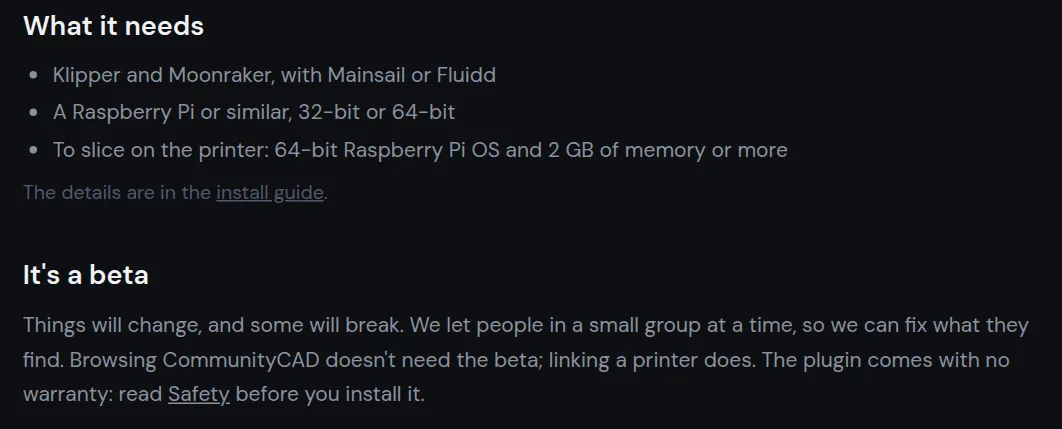
The Hopper page: what it needs, and a note that it's a beta with no warranty

Hopper runs on the computer that runs Klipper, usually a Raspberry Pi. You need Klipper and Moonraker with Mainsail or Fluidd, and SSH access to the Pi.

To slice on the printer as well, the Pi needs 64-bit Raspberry Pi OS (the current version, Debian 13), 2 GB of memory or more, and about 700 MB free. Without those, Hopper still installs; it just skips slicing.

The installer checks all of this for you before it changes anything, so you don't have to be sure yet. The full list is in the install guide.

Step 2

Ask for a place in the beta

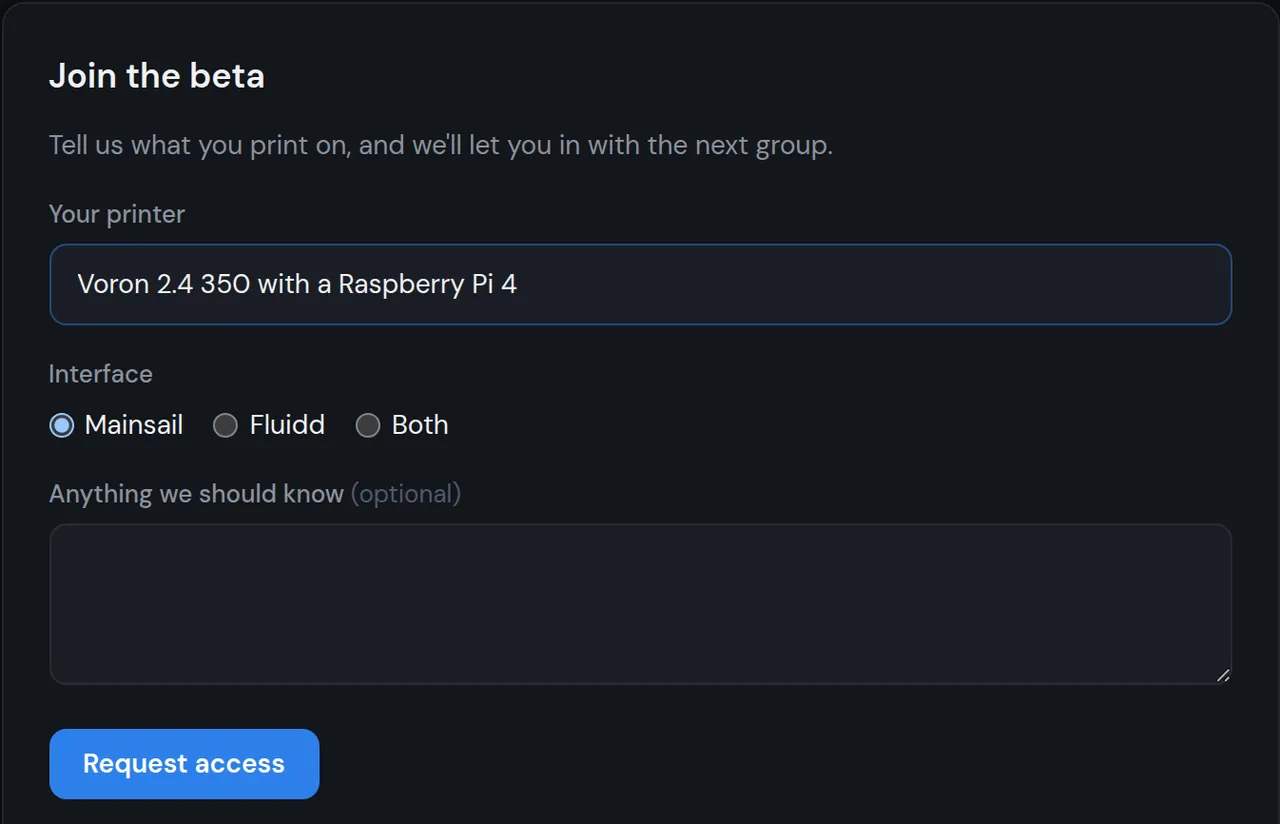
The Join the beta form: your printer, your interface, an optional note, and Request access

Go to the Hopper beta page and sign in with Google or GitHub. You don't need a beta place to browse CommunityCAD; you need one to link a printer.

Under Join the beta, tell us:

  • Your printer, for example "Voron 2.4 350 with a Raspberry Pi 4";
  • whether you use Mainsail, Fluidd or both;
  • anything else we should know (optional).

Then choose Request access.

Step 3

Wait for your group

The beta page after asking: Requested on, and a note that it will show the install steps when you're in

We let people in a small group at a time, so we can fix what each group finds before the next one joins. The beta page shows the date you asked.

When you're in, the same page shows the install steps, so check back there. We don't email you yet.

Tip

Connect Discord on the beta page (it's recommended). You join the CommunityCAD server, and once you're approved you get the Founding Tester role automatically. That's where testers talk to each other and to us.

Step 4

Install Hopper with one command

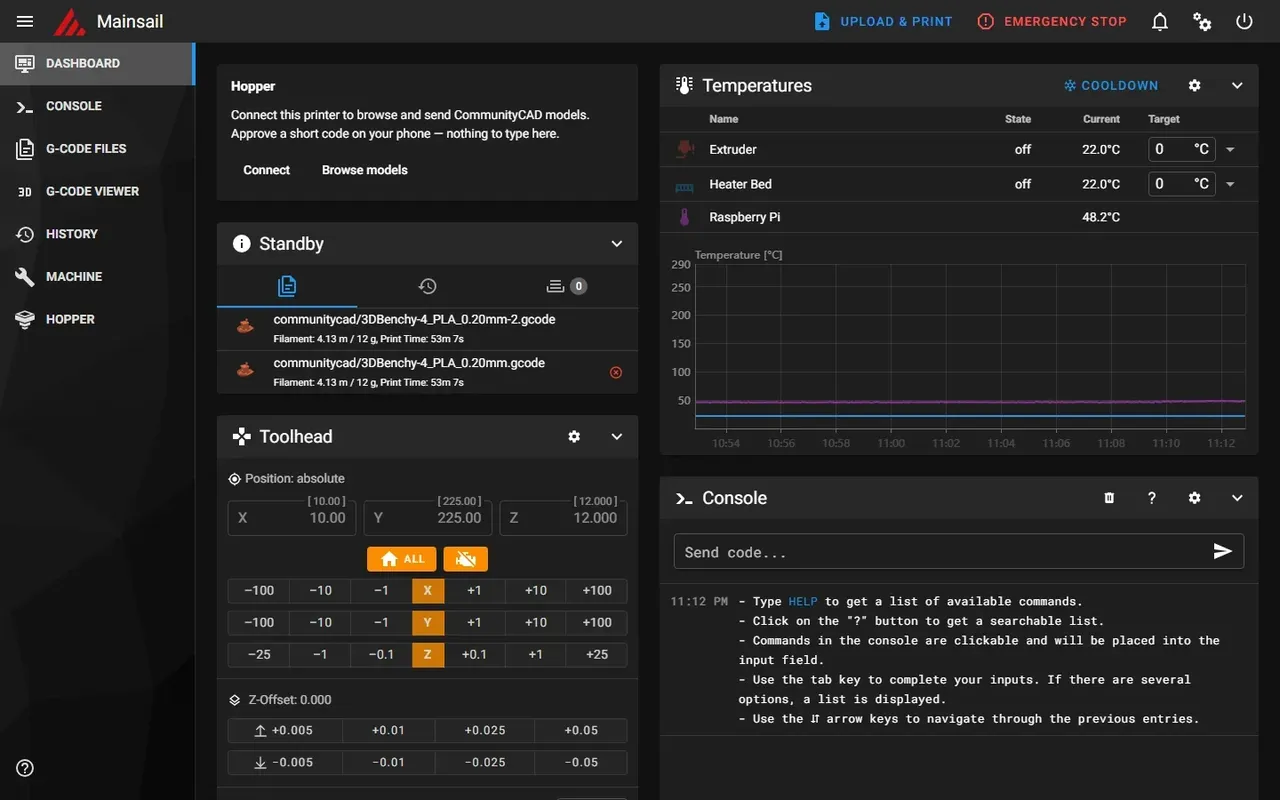
Mainsail's dashboard with Hopper's panel on an unlinked printer: Connect and Browse models

Once you're in, the beta page shows this command. On the Pi, over SSH, as the user that runs Klipper (usually pi; not root or sudo), run:

bash <(curl -fsSL https://github.com/CommunityCad-dev/Hopper/releases/latest/download/install.sh)

The installer checks your printer first and asks before it changes anything. It installs Hopper and slicing on the printer in about 2 minutes on a Pi 4. When it's done, reload Mainsail or Fluidd in your browser: a Hopper entry appears in the menu, and a Hopper panel on the dashboard.

Warning

Hopper is a beta and comes with no warranty. Files on CommunityCAD are made by other people and aren't checked, and a file made for another printer can damage yours. Read Safety before you print anything.

Step 5

Start linking the printer

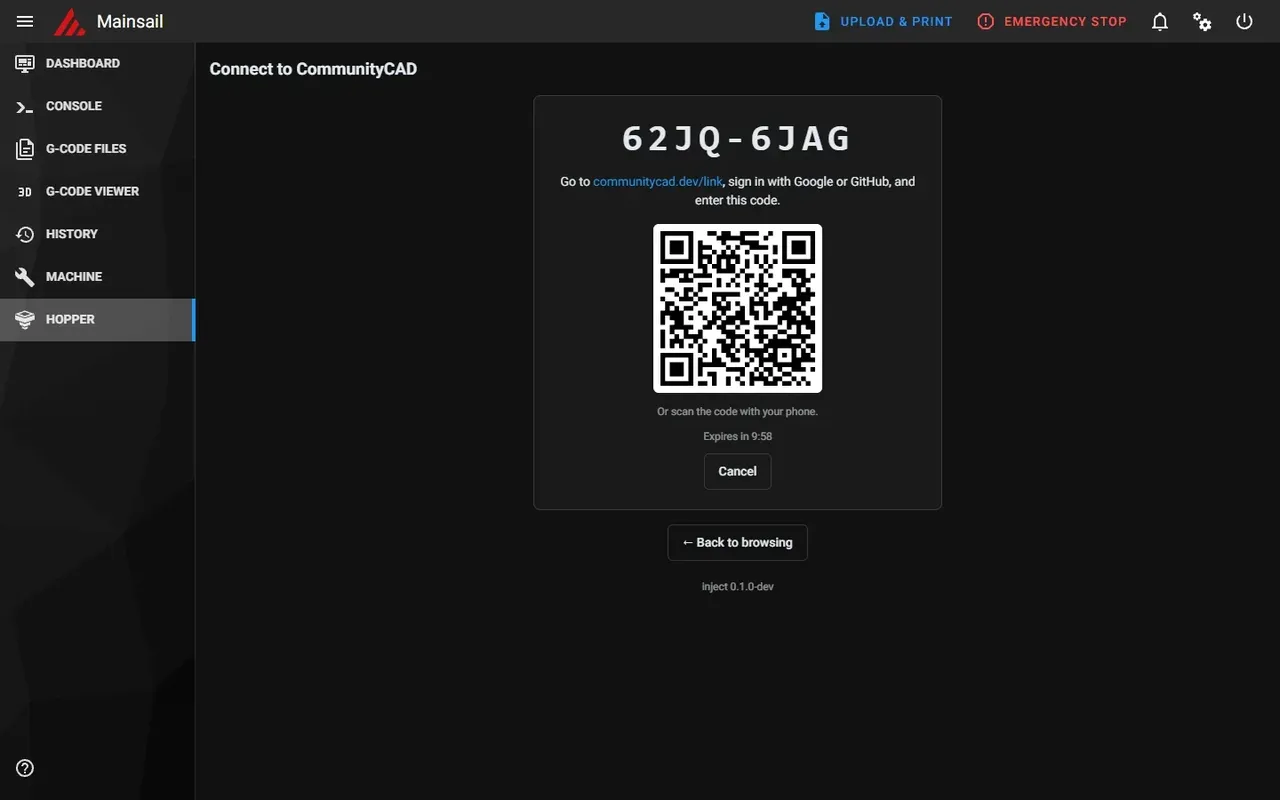
Hopper showing a link code and a QR code to scan, with a countdown and Cancel

Linking lets the printer download and share as you. You approve it on your phone or computer; nothing is typed on the printer, and the printer never sees your Google or GitHub login.

On Hopper's dashboard panel choose Connect (or go to Hopper's Settings → Account), then Start sign-in. Hopper shows a short code like ABCD-EFGH and a QR code. Codes last 10 minutes; if one runs out, the printer offers a new one.

Step 6

Approve it on your phone

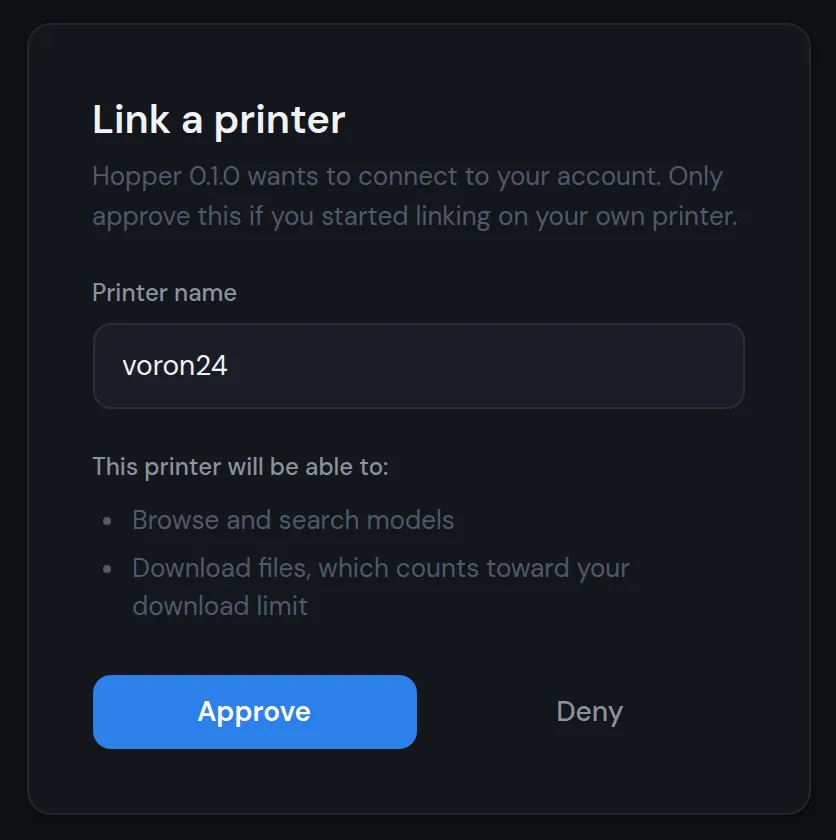
The Link a printer page: the printer name, what it will be able to do, and Approve or Deny

Scan the QR code, or go to communitycad.dev/link and type the code. Sign in if you aren't already.

Check the request. Only approve it if you started linking on your own printer just now. You can change the printer name; it's how the printer shows up in your account.

Choose Approve. Within a few seconds Hopper says This printer is linked as your username. A new link can only browse and download. Hopper asks again the first time you share a print.

Step 7

Find a part and send it to the printer

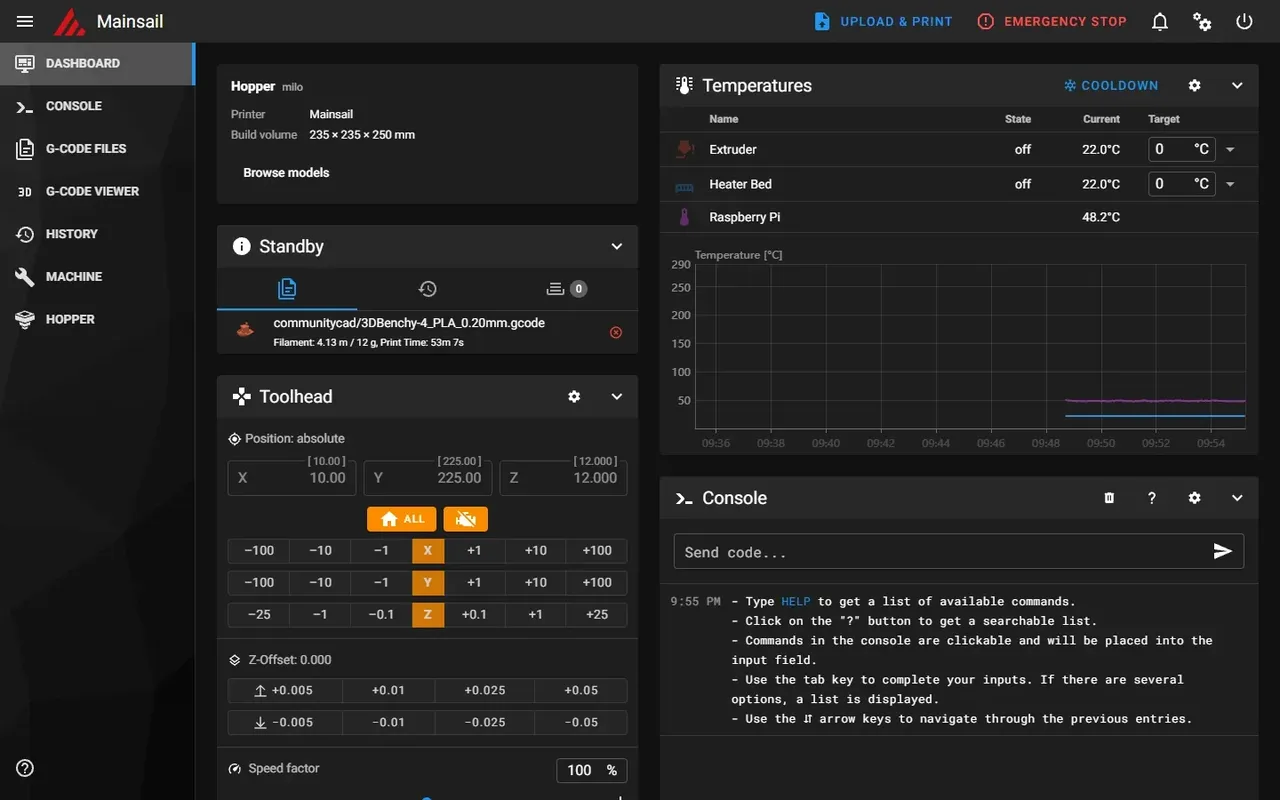
Mainsail's dashboard with Hopper's panel on a linked printer, showing the printer's build volume and Browse models

Open Hopper in Mainsail's menu. Browse shows CommunityCAD filtered to models that fit your build volume. Search for something to try, like an M3 socket head cap screw from CommunityCAD's parts library.

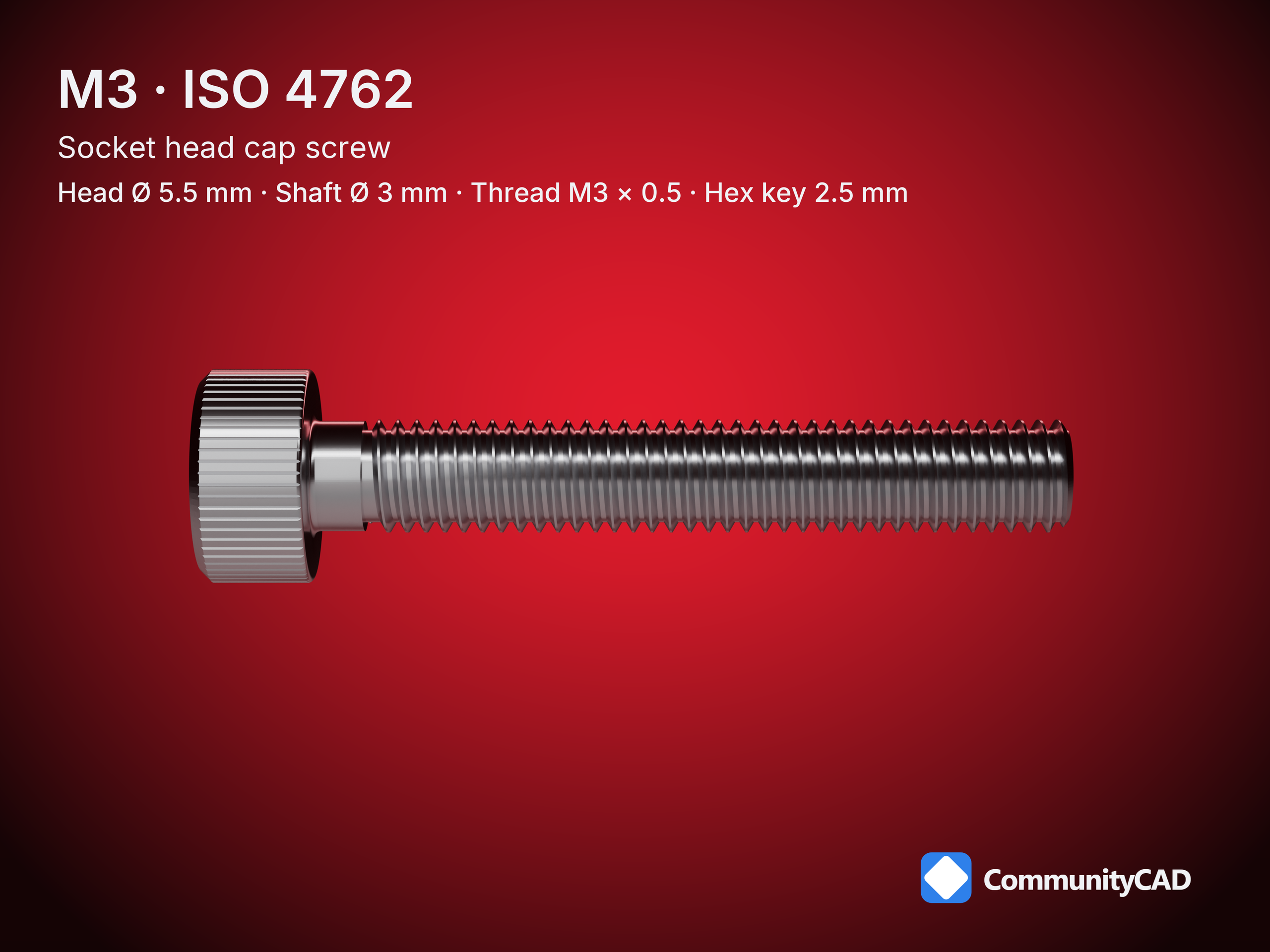
M3 Socket Head Cap Screw, ISO 4762 / DIN 912
Model on CommunityCAD

On a model, Print slices and prints it in one go, and Open in slicer lets you adjust the settings first. Starting a print always needs your confirmation, and if the printer is busy, Print becomes Add to queue. Downloads from the printer count toward the same download limit as the website. More in Browsing and printing.