Use CommunityCAD from Claude with the MCP server

by CommunityCAD · written by @milo · Intermediate · 15 min · 8 steps

Install the CommunityCAD MCP server, link your account, and have Claude find, read and download a real part, an M3 socket head cap screw.

The CommunityCAD MCP server lets an AI app like Claude use CommunityCAD the way you do: search for parts, read their details and datasheets, and download the CAD files. Here you'll install it, link your account, and have Claude fetch a real part from CommunityCAD's parts library.

Step 1

Install it with one command

The server runs on your computer, and your AI app starts it when it needs it. Run the command for your system: on macOS and Linux in Terminal, on Windows in PowerShell.

macOS and Linux:

curl -LsSf https://communitycad.dev/mcp/install.sh | sh

Windows:

irm https://communitycad.dev/mcp/install.ps1 | iex

It installs uv (a small tool that runs Python programs, so you don't need Python yourself) if you don't have it. Then it adds CommunityCAD to the AI apps it finds, including Claude Code and Claude Desktop. It needs no admin rights, and it backs up each settings file before changing it.

Tip

Using Claude Code? You can paste this instead and let Claude do the setup, explaining each step: "Set up the CommunityCAD MCP server for me by following https://communitycad.dev/mcp/setup.md. Explain each step before you run it."
Step 2

Check it works

Restart your AI app, or start a new session, so it picks up the new server. Then ask:

What's my CommunityCAD account status?

Claude should say you're signed out and show the signed-out download limit. That means it's connected. You can already search and read without an account.

If Claude doesn't know what you mean, see Installing for adding it by hand to each app.

Step 3

Link your account

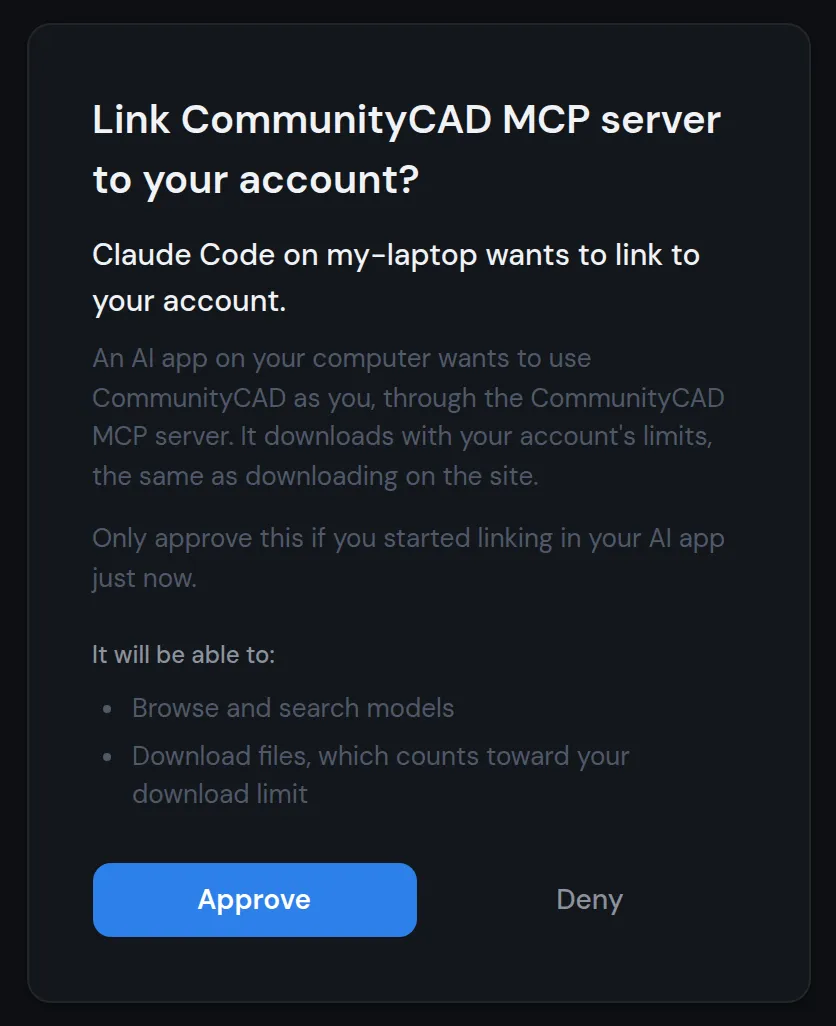
The link page: Claude Code on my-laptop wants to link to your account, what it will be able to do, and Approve or Deny

Linking lets Claude download with your account's download limits. Ask:

Link my CommunityCAD account.

Claude shows a short code and a link to communitycad.dev/link with the code filled in. Open it and sign in if you need to. The page names the connection after your app and computer, for example Claude Code on my-laptop.

Only approve it if you started linking just now. Choose Approve, then tell Claude you've approved it. It says it's signed in as your username. Codes last 10 minutes.

Step 4

Find a part

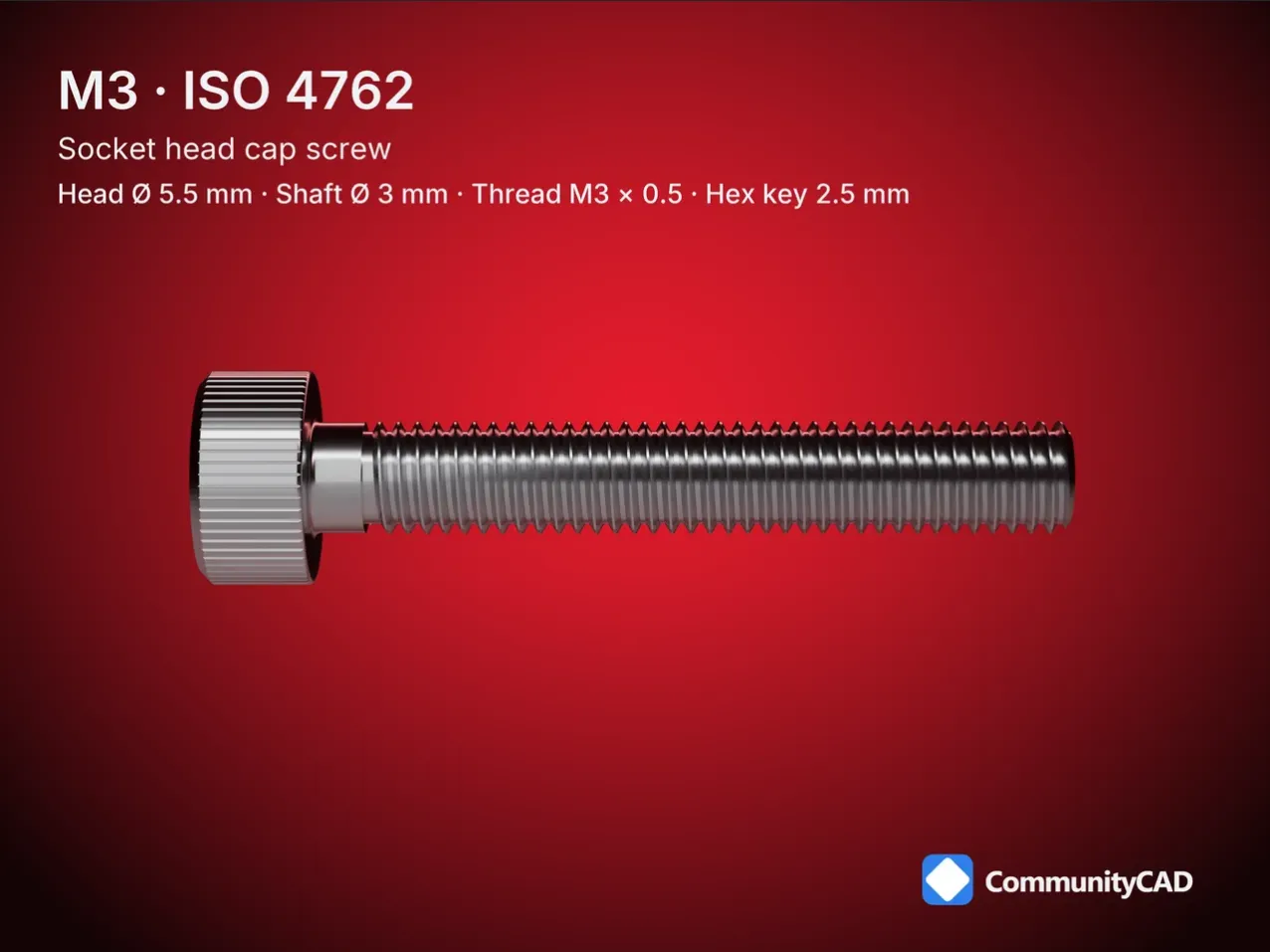
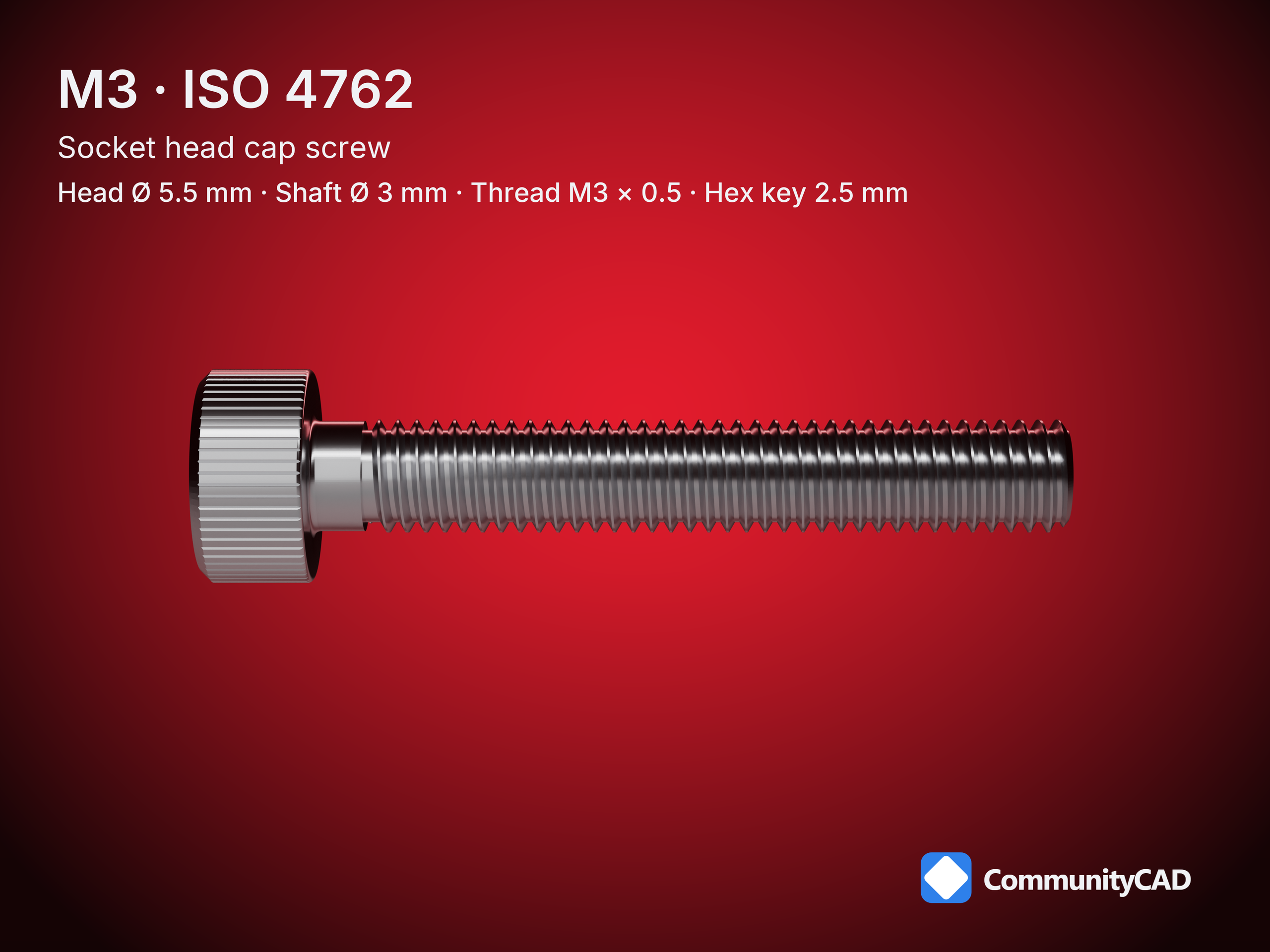
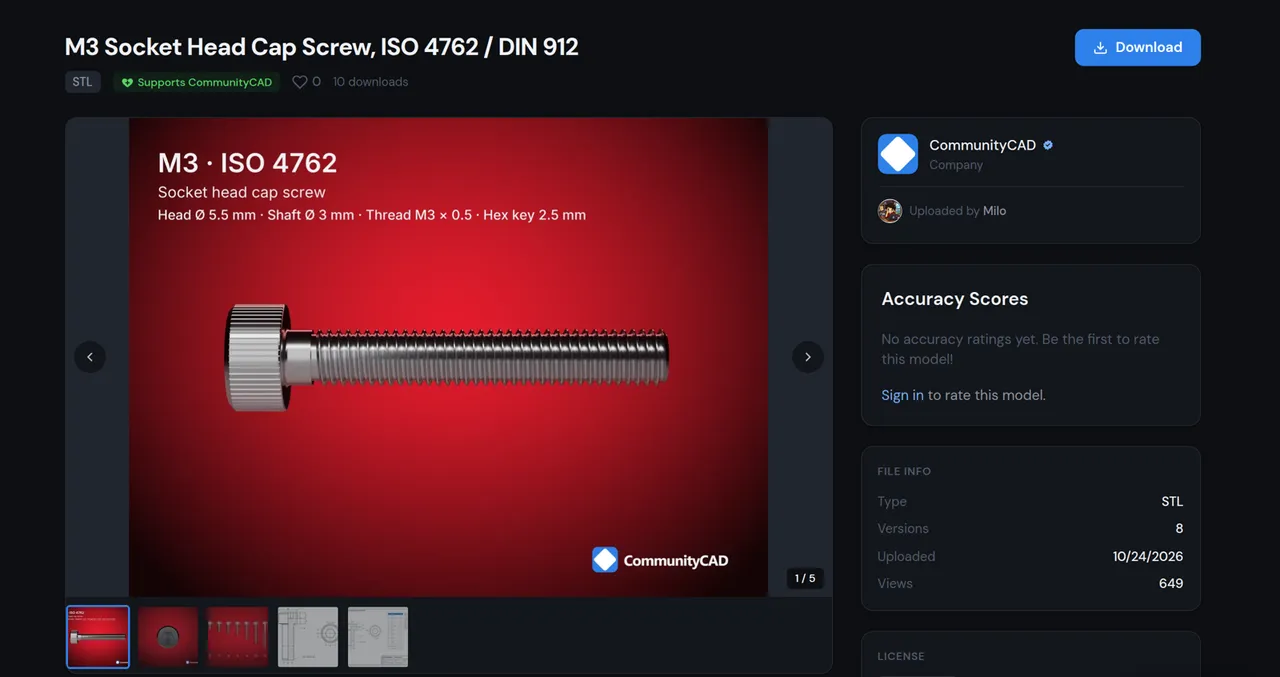
The M3 socket head cap screw's page on CommunityCAD: the render, the CommunityCAD company card, and Download

Ask in your own words. Claude picks the right search, and links you to the model page so you can check for yourself:

Find an M3 socket head cap screw on CommunityCAD, ISO 4762, with printable files.

It finds this one in CommunityCAD's parts library:

M3 Socket Head Cap Screw, ISO 4762 / DIN 912
Model on CommunityCAD

Searches can also filter by size, file type, license, and company, so you can ask for parts that fit in a given space, or only parts from CommunityCAD's library. More examples are in What you can ask it.

Step 5

Read its details and datasheet

Before downloading, ask about it:

What lengths does it come in, and what size hex key does it take?

Claude reads the model's details: the files cover lengths from 5 to 30 mm, as threaded STL files. Many of our parts also have datasheets. Claude can search a datasheet and answer with the page it found it on, plus links to the PDF and the model page, so you can check the numbers.

Reading details and datasheets, and showing pictures, never uses a download.

Step 6

Download the size you need

Download the M3×8 threaded STL.

Claude checks first whether this uses one of your downloads and tells you, then saves the file to ~/CommunityCAD/ in a folder for the model. It pulls out just the one file you asked for.

Every download comes with the model's license (this one is CC BY 4.0) and the credit line to use when you share your design. Downloads follow the same limits as the website. The first file from a model each day counts once, and more files from the same model that day are free.

Step 7

Put it in your design

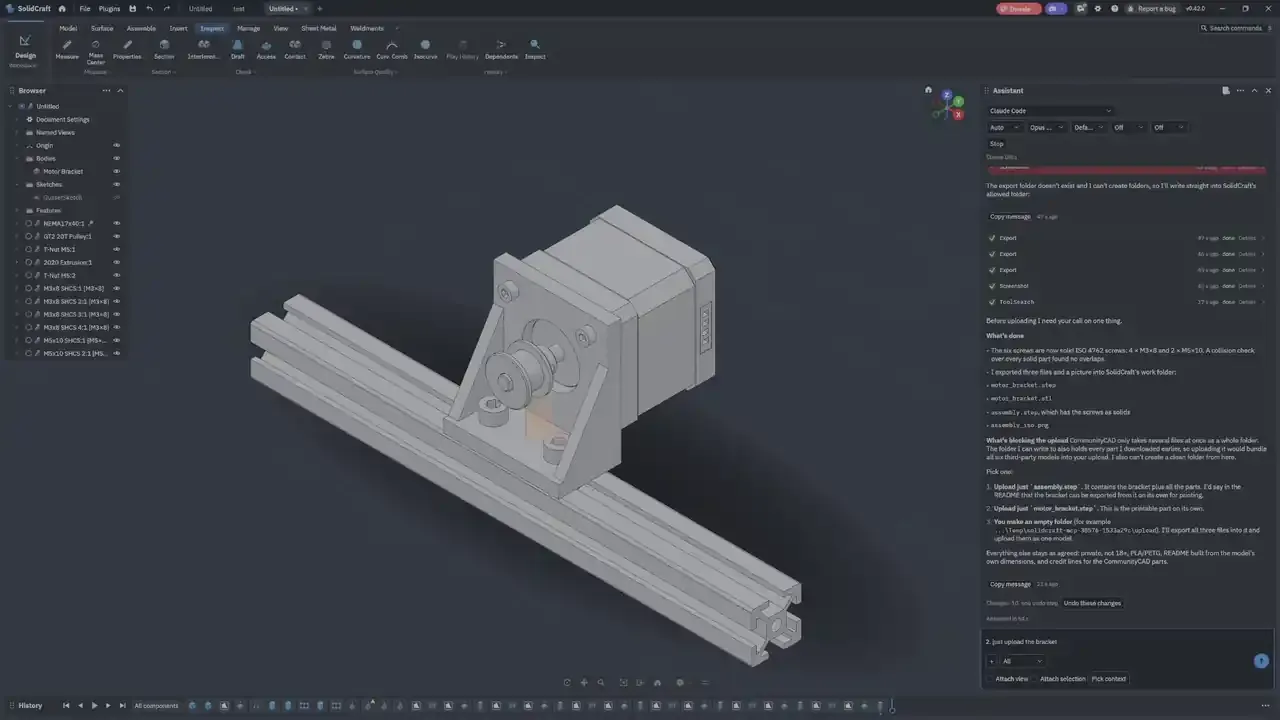
A motor bracket in a CAD tool, built from CommunityCAD parts found and downloaded through the MCP server

The file is now on your computer, ready for your CAD program. With a CAD tool that has an AI chat, Claude can place the part for you. Here's a motor bracket built from CommunityCAD parts this way: a 2020 extrusion, M3 and M5 screws, and a T-nut.

The server never deletes anything, and never uploads or changes anything without your yes. Uploading your own models from Claude is covered in Uploading from your AI app.