Update a model with versions

by CommunityCAD · written by @milo · Beginner · 10 min · 7 steps

Improve a model without losing its link, likes or history: upload a new version with a changelog, and see what changes for everyone.

Improved a design? Upload it as a new version of the same model, not a new model. We'll take the 120x38 AC cooling fan from Upload your first model from a lone STEP file to a full project with a README, license and datasheets.

Step 1

Why a new version, not a new model

A new version keeps everything in one place: the link people bookmarked, likes, ratings, comments and download counts all stay with the model. Visitors always get the newest files, and anyone can still find the older ones.

Upload a new model only when it's genuinely a different thing, like a 92 mm fan rather than a 120 mm one.
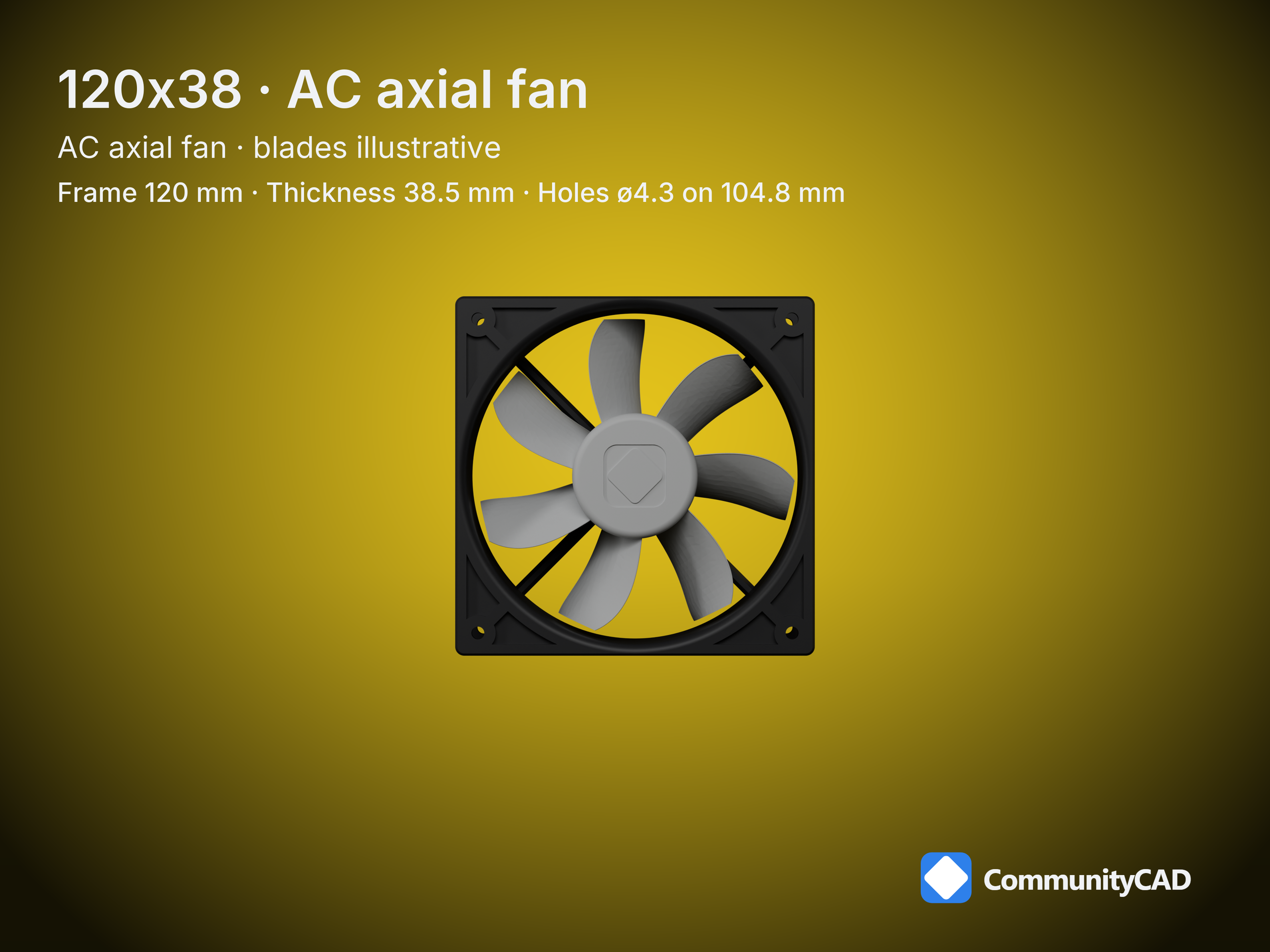
120x38 AC Cooling Fan, Axial
Model on CommunityCAD
Step 2

Open the Versions tab

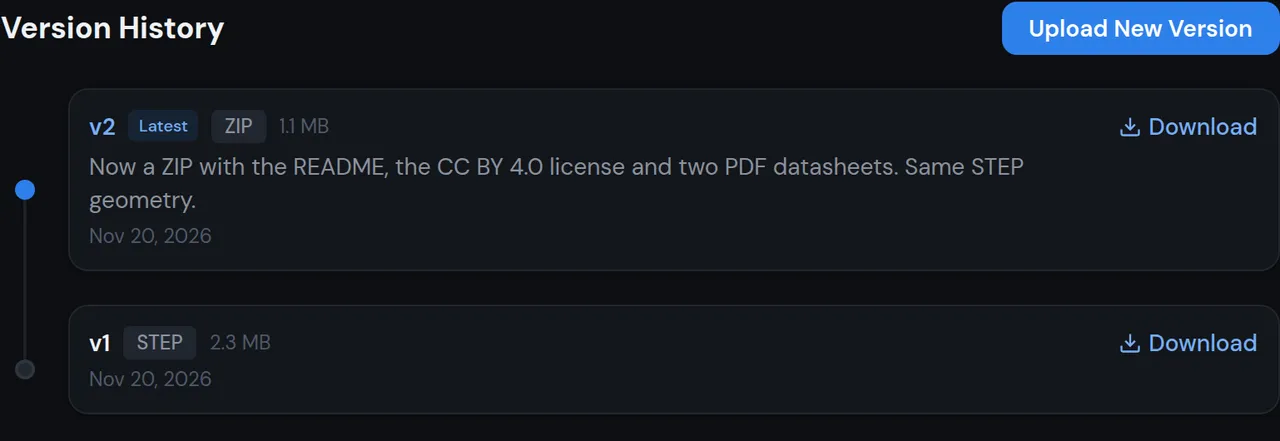
The Version History with the Upload New Version button, v2 marked Latest and v1 below it

Sign in and open your model. Below the gallery, choose the Versions tab. As the owner, you see Upload New Version at the top of the version history.

The history lists every version, newest first, each with its file type, size, date and changelog.

Step 3

Drop in the new file and write a changelog

The Upload New Version dialog with 120x38-ac-cooling-fan-axial.zip and a changelog

Choose Upload New Version, then drop in the new file or click to browse. It takes the same file types as the first upload, up to 250 MB.

In Changelog, say what changed in a sentence: "Thicker walls on the mount, fixed hole spacing". People deciding whether to re-download read this, so be specific. Then choose Upload.

Tip

Moving from a single file to a ZIP is a good reason for a new version: add a README, a LICENSE and your datasheets alongside the CAD. See Organising your files.

Step 4

What changes when it's live

The Files tab after version 2: the STEP in cad/, the generated STL in exports/, PDFs in docs/, README.md and LICENSE

Versions are numbered 1, 2, 3… and the newest is marked Latest. From now on:

  • the main Download button gets the latest version;
  • the Files tab shows the latest version's files;
  • for a ZIP, its README and LICENSE are picked up and new previews are rendered.

Here the fan's ZIP brought its cad/ STEP file, the PDF datasheets in docs/, a README and a CC BY 4.0 LICENSE. We also made a printable STL under exports/.

Step 5

Older versions stay available

Nothing is lost. Every earlier version stays downloadable from the Versions tab with its Download link, date and changelog. That matters when someone built from version 1 and needs those exact files again.

Step 6

Small fixes don't need a version

To fix a typo, add photos or switch to private, choose Edit model in the sidebar instead. You can change the title, the description, visibility, the license, images (drag to reorder; the first is the thumbnail) and datasheets, and add files to a folder from the Files tab.

Note

Tags can't be changed after upload yet. See Versions and editing.